Set up sync
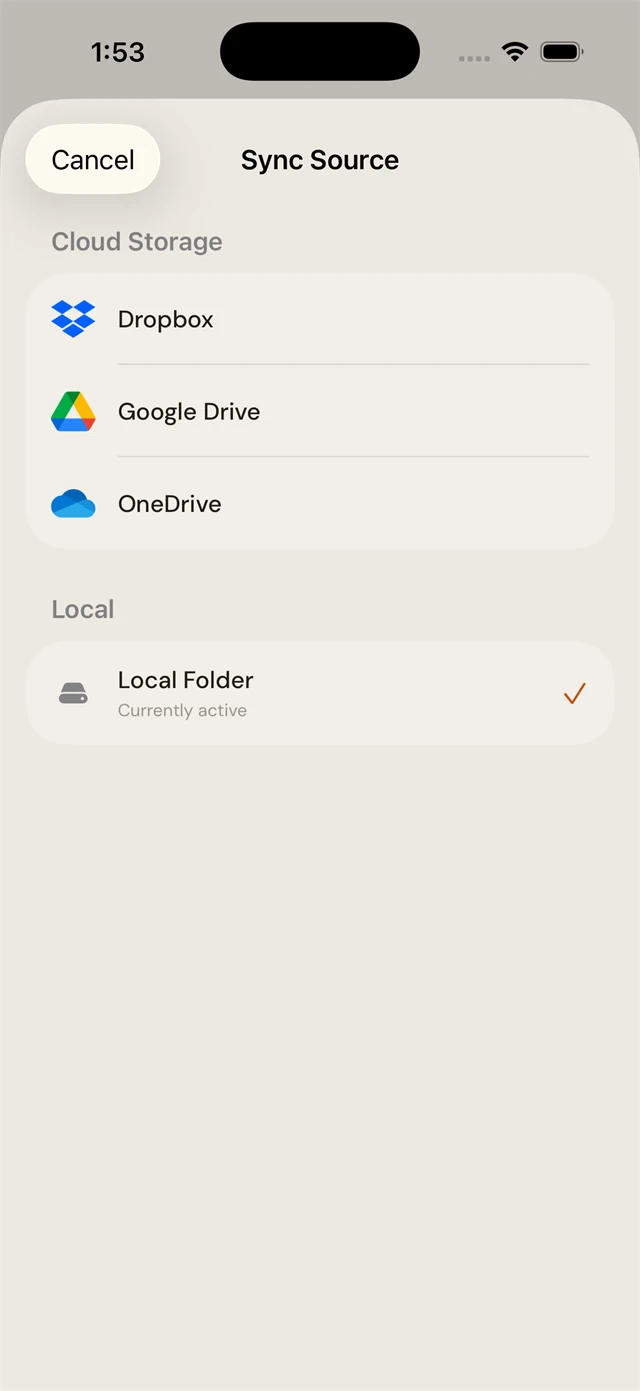
Connect a cloud library, or switch providers, from Settings → Sync source, whether you started on a local folder or you're moving from one cloud to another.
Setting up for the first time? Start with Getting started instead, it walks your very first library (local or cloud) from the Connect Your Library screen. This page is for adding or changing a sync source after that.
Dropbox
- In CalibReader, open Settings → Sync source and choose Dropbox.
- Authorize CalibReader to access your Dropbox (a browser window opens).
- Pick the folder your Calibre library lives in (the one with
metadata.db). - Tap Sync now. The first sync downloads your library. Later syncs of just a few new books finish instantly.
OneDrive
- Open Settings → Sync source and choose OneDrive.
- Sign in to your Microsoft account and grant access.
- Select the folder containing your Calibre library (
metadata.db). - Tap Sync now.
Google Drive
- Open Settings → Sync source and choose Google Drive.
- Sign in with Google and approve the access it asks for. (Same sign-in and consent screens as first-time setup; see Getting started for those.)
- Select the folder containing your Calibre library (the one with
metadata.db). - Tap Sync now. The first sync downloads your whole library; later syncs of just a few new books finish instantly.
Self-hosted (WebDAV / NAS)
Self-hosted sync is coming soon. Today, sync via Dropbox, OneDrive, or Google Drive.
Switching sources and managing libraries
You can change your sync source whenever you like: start on Dropbox and switch to Google Drive, or move from a cloud provider to a local folder. CalibReader makes it easy to keep more than one library and switch between them, though you view one library at a time.
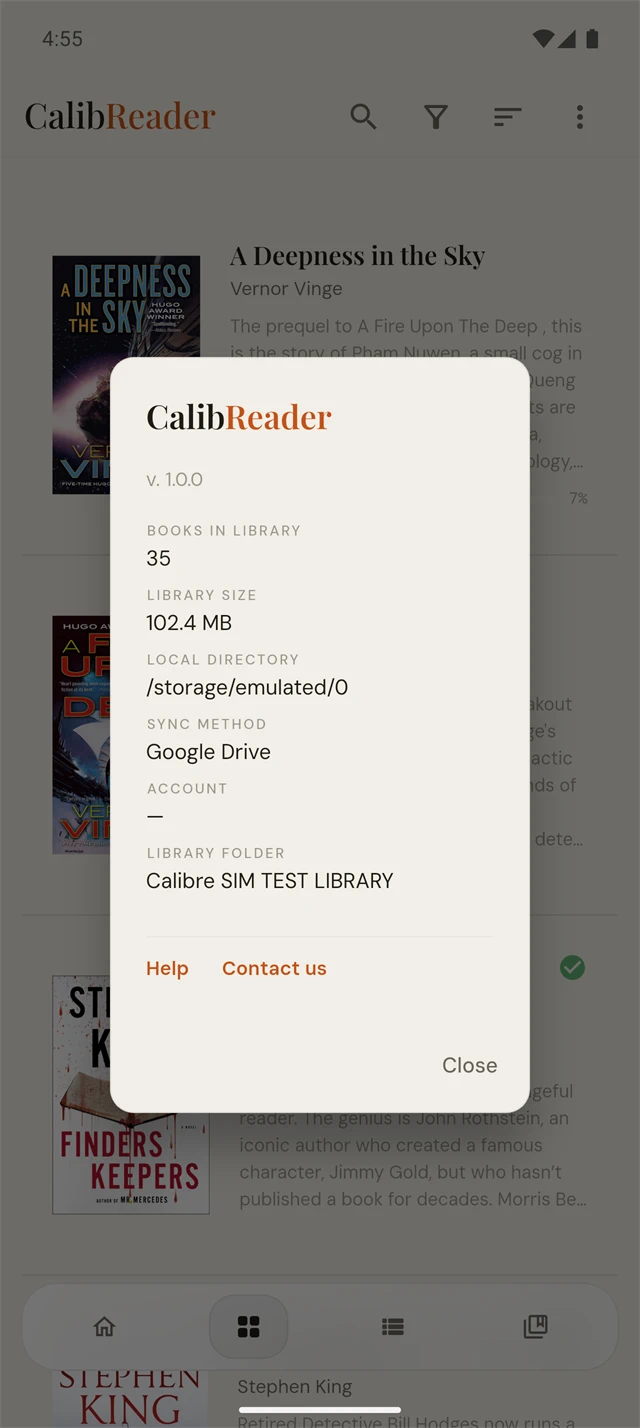
Not sure which one you're looking at? Open the About panel from the toolbar menu. It shows your current sync method, the library folder and its full path, and the account you're signed in with, so if you're connected to Dropbox or Google Drive with a particular email, you'll see it there.