Getting started
From install to your first book, pick the path that fits you.
1. Install the app
CalibReader is coming soon to the App Store and Google Play. Get notified at launch.
2. Pick your path
On first launch, CalibReader shows the Connect Your Library screen. You choose your source here: a cloud provider (Dropbox, Google Drive, or OneDrive), or a Local folder on your device.
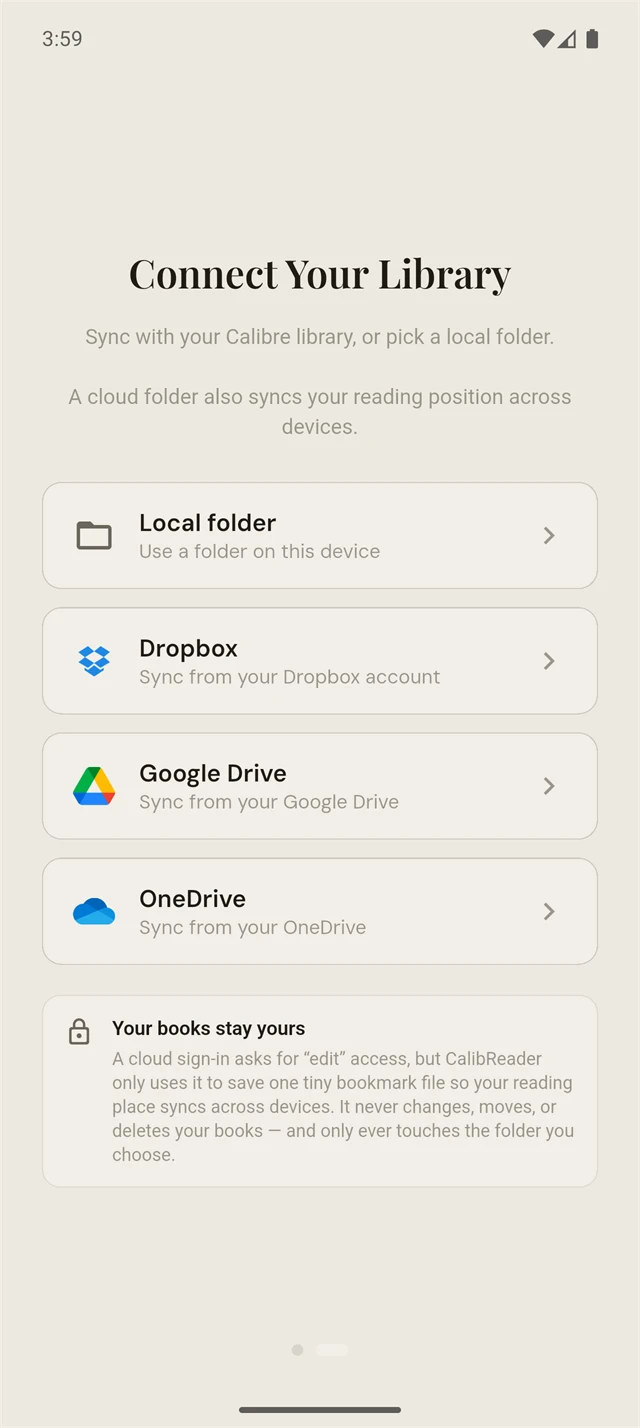
Which one fits you?
Keep your Calibre library in a folder your cloud app already syncs (Dropbox, OneDrive, or Google Drive); CalibReader reads it straight from there, and nothing is uploaded to us. The one thing that matters when you connect: pick the top-level Calibre folder, the one that holds metadata.db, not a sub-folder inside it.
Example. Select the top-level calibre folder:
Dropbox/calibre/            ← select THIS folder
├── metadata.db
├── Brandon Sanderson/
│   └── Mistborn/
│       ├── Mistborn.epub
│       ├── cover.jpg
│       └── metadata.opf
└── Andy Weir/
    └── Project Hail Mary/
        ├── Project Hail Mary.epub
        ├── cover.jpg
        └── metadata.opf
- Pick your cloud provider on the Connect Your Library screen, then sign in and approve the access it asks for. The read permission is what lets CalibReader open your library and download it to your device. The write permission is used for one thing only: a small file that tracks your reading progress, so when you switch from reading on your phone to your tablet, you pick right back up at your reading position, kept in sync across your devices.
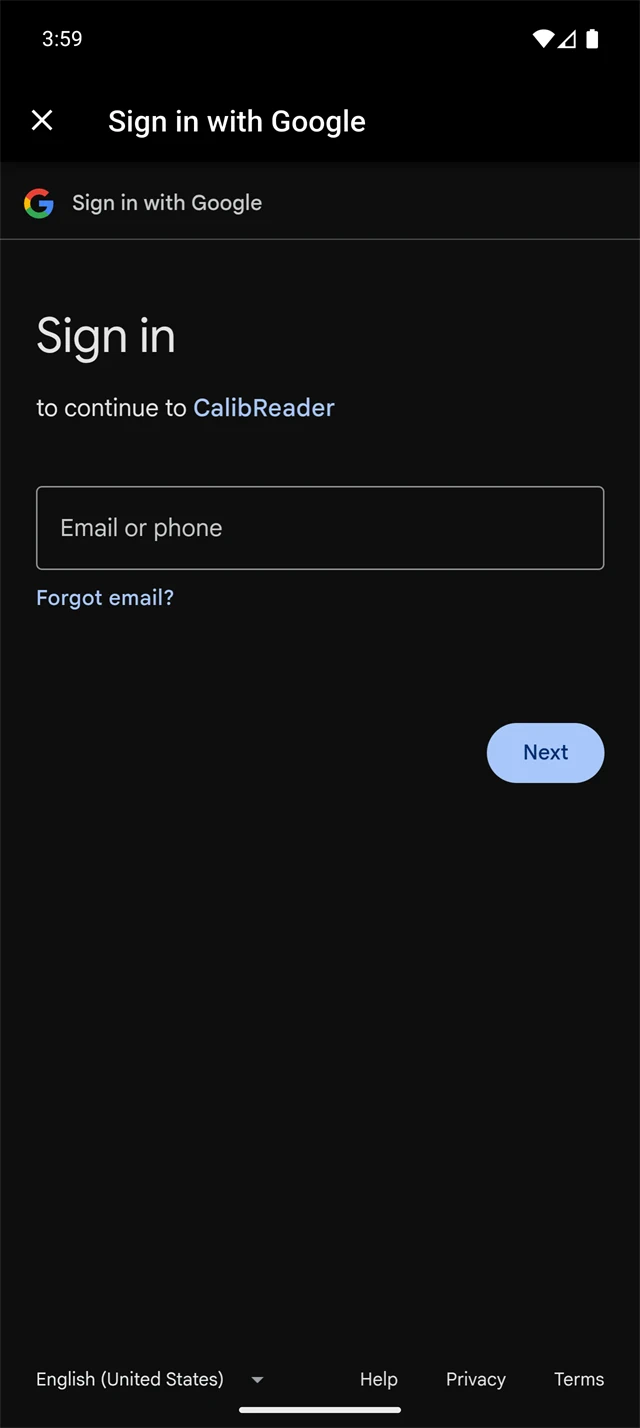
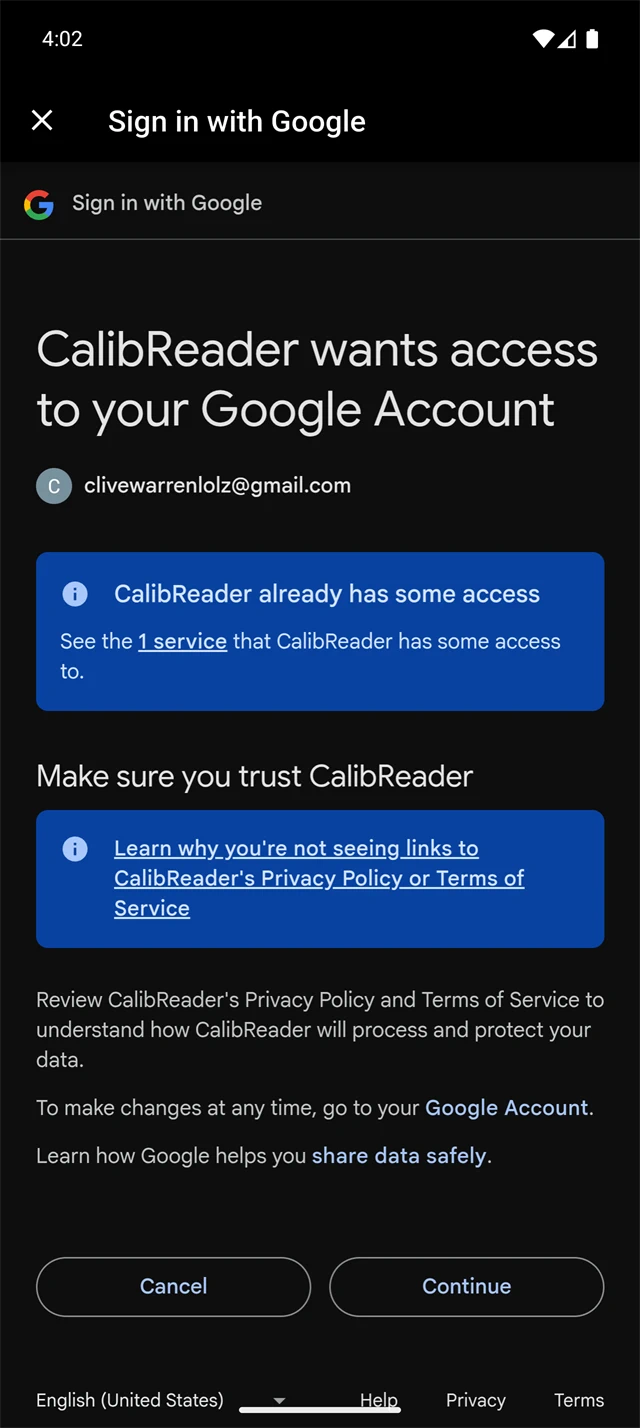
Sign in (left), then approve access (right). - Browse to the folder that holds your Calibre library (the one containing
metadata.db) and select it.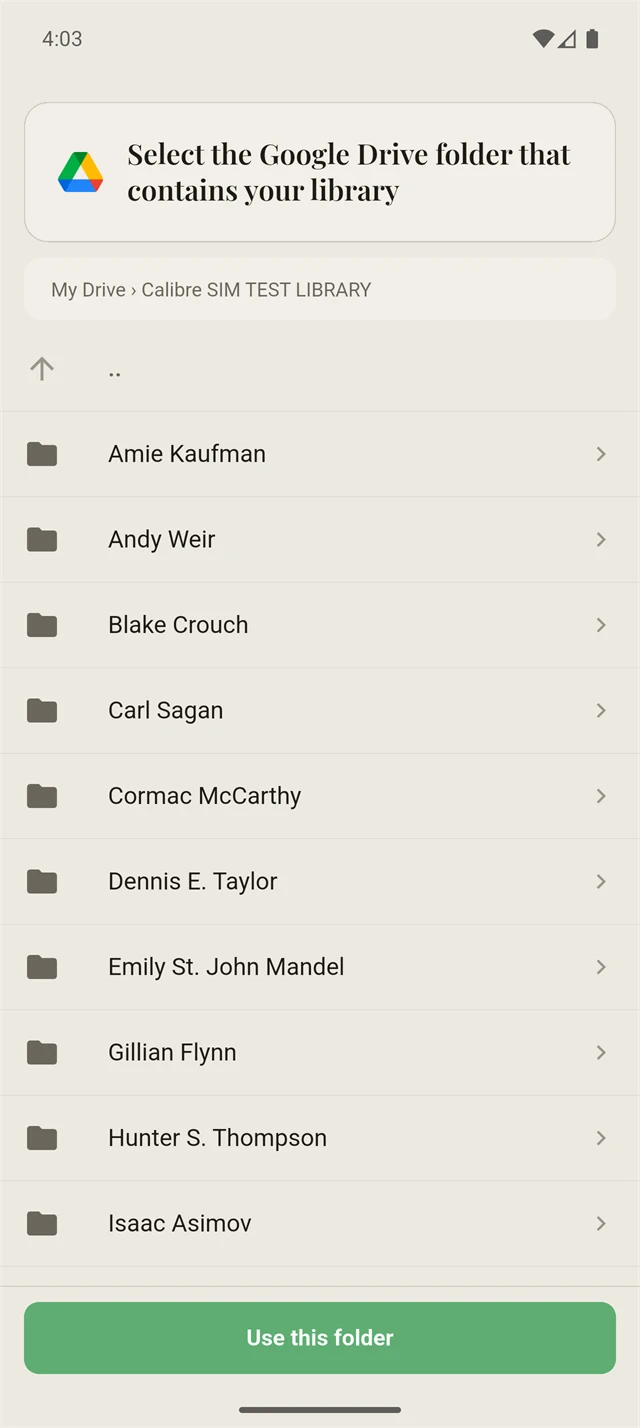
Pick the folder with metadata.db. - Tap Sync now. The first sync downloads your whole library. If you sync again later and have added only a handful of new books, the sync happens instantly.
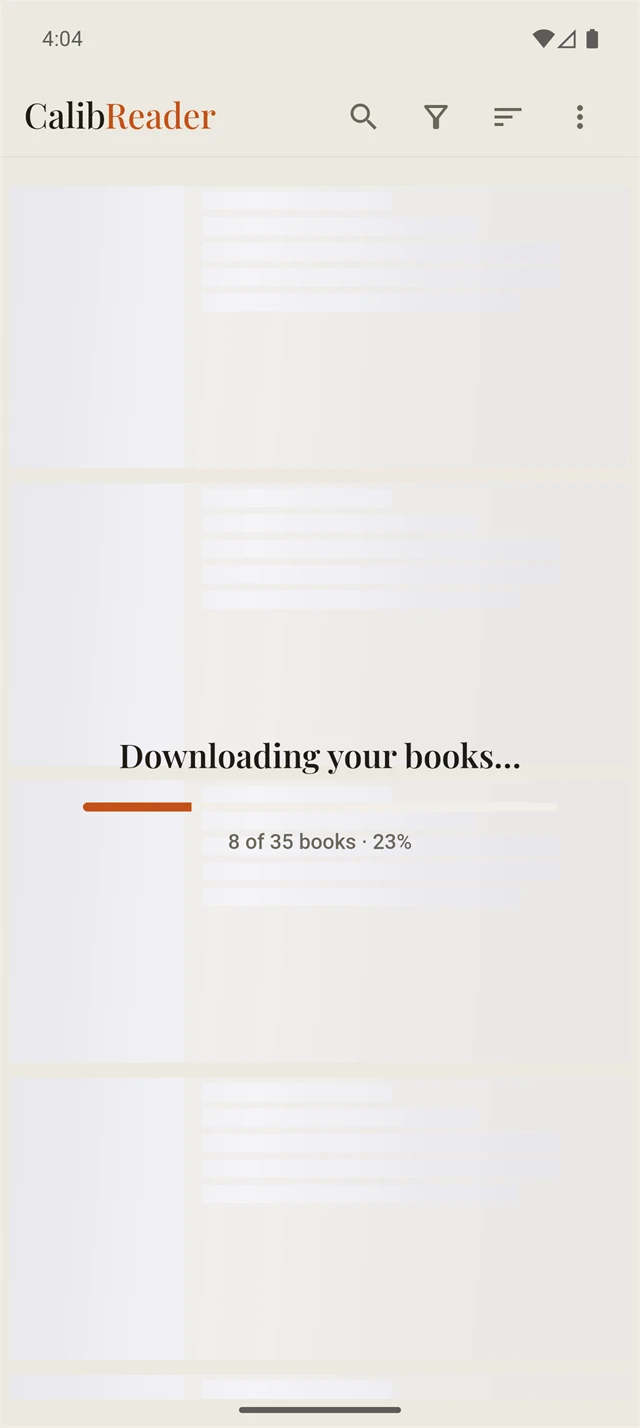
The first sync in progress.
Optional: two-way read status
Want books you finish on your phone to show as read in Calibre too? Install the CalibReader Sync plugin and add a read_status custom column; see the custom columns guide.
No Calibre and no cloud account required. Point CalibReader at a single folder on your phone or tablet: either one that already holds your EPUB and PDF files, or an empty one you'll add books to later (using the Files app, a USB transfer, or your downloads).
- Choose Local folder on the Connect Your Library screen (shown above).
- Pick the folder: wherever your books already live, or wherever you plan to keep them.
- That's it. Whatever's in that folder shows up in your library, and any books you add to it later show up too.
You're in
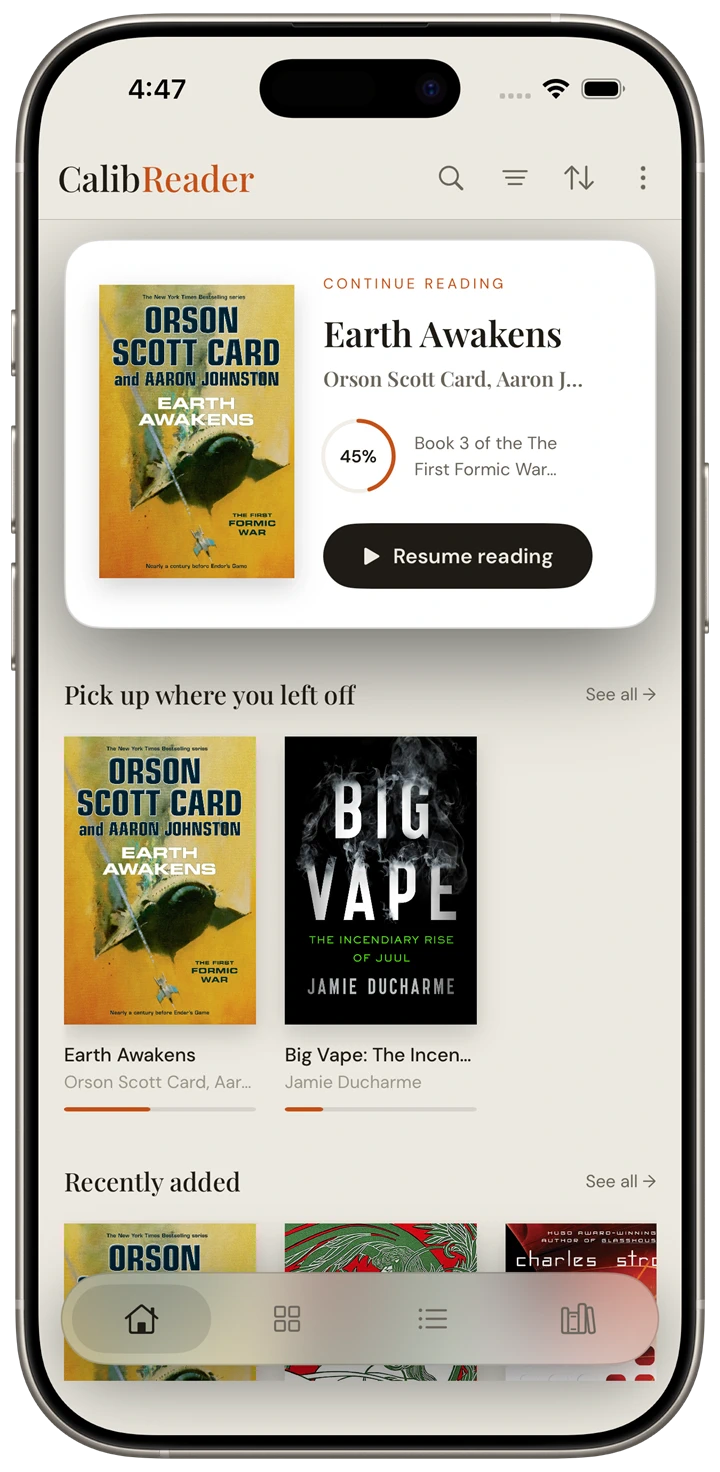
However you got here, your books are on your device, ready to read offline. Browse the Home, Grid, List, and Series views; see Navigation and Library views.