Navigating CalibReader
Here's the lay of the land: the handful of screens you move between, and how to reach each one.
Library (main screen)
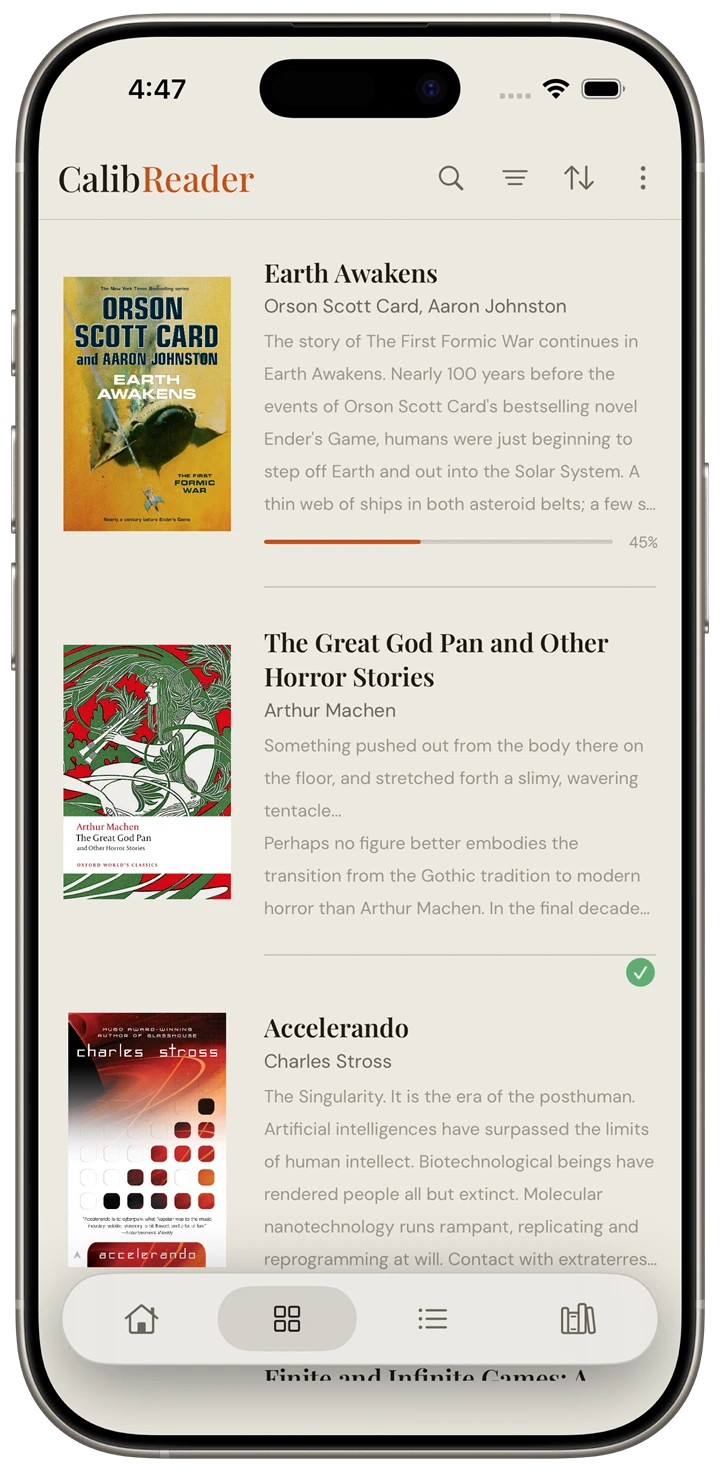
The Library is where you land after setup. Four views sit in the bottom tab bar (Home, Grid, List, and Series), and across the top is the toolbar: a sync icon, search, the filter and sort icons, and a menu. For the full breakdown of each view, plus filtering and sorting, see Library views.
Menu (sync source & folder)
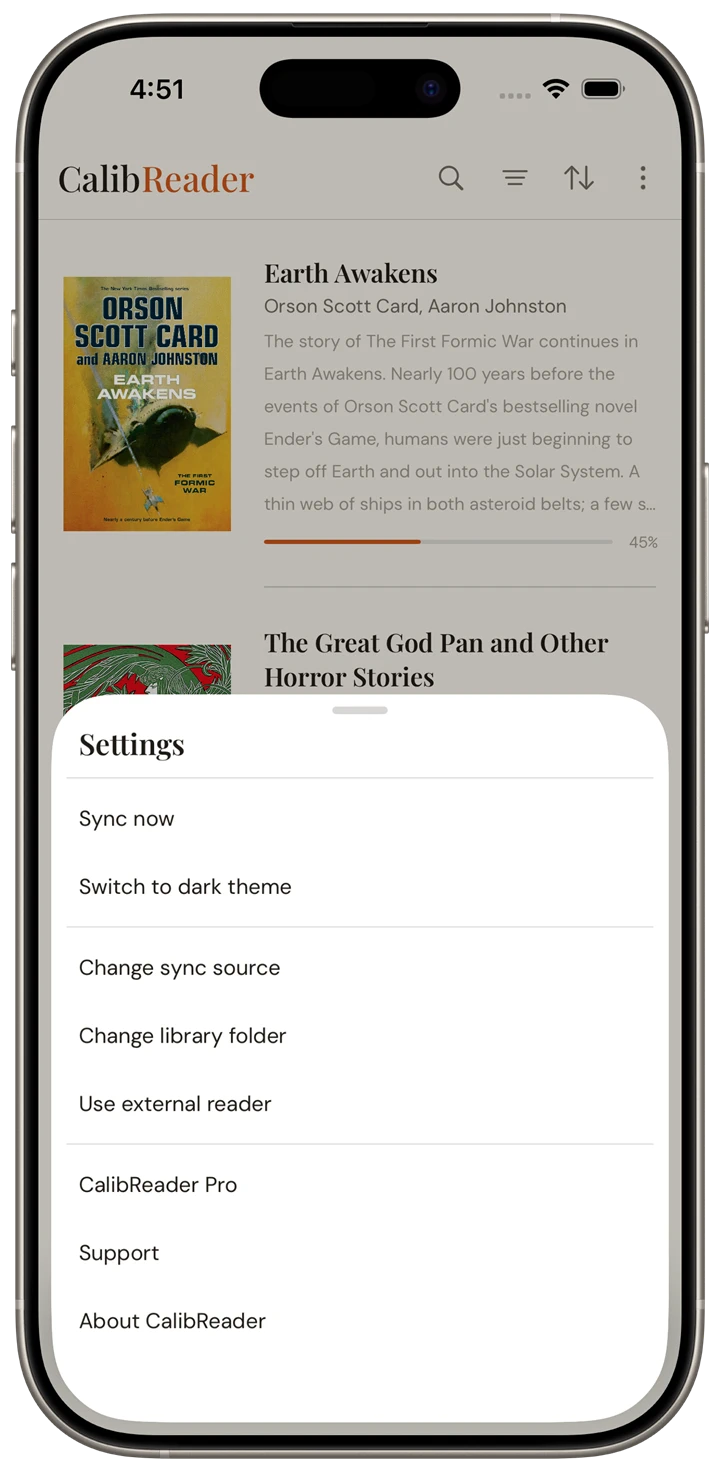
The menu in the library toolbar is where the housekeeping lives: switch theme, change your sync source, choose your cloud folder or library folder, and sign out. Tap the sync icon any time to pull the latest from your Calibre library. To pick where CalibReader reads from in the first place, see Set up; for how read status and progress round-trip back to Calibre, see Sync.
Book detail
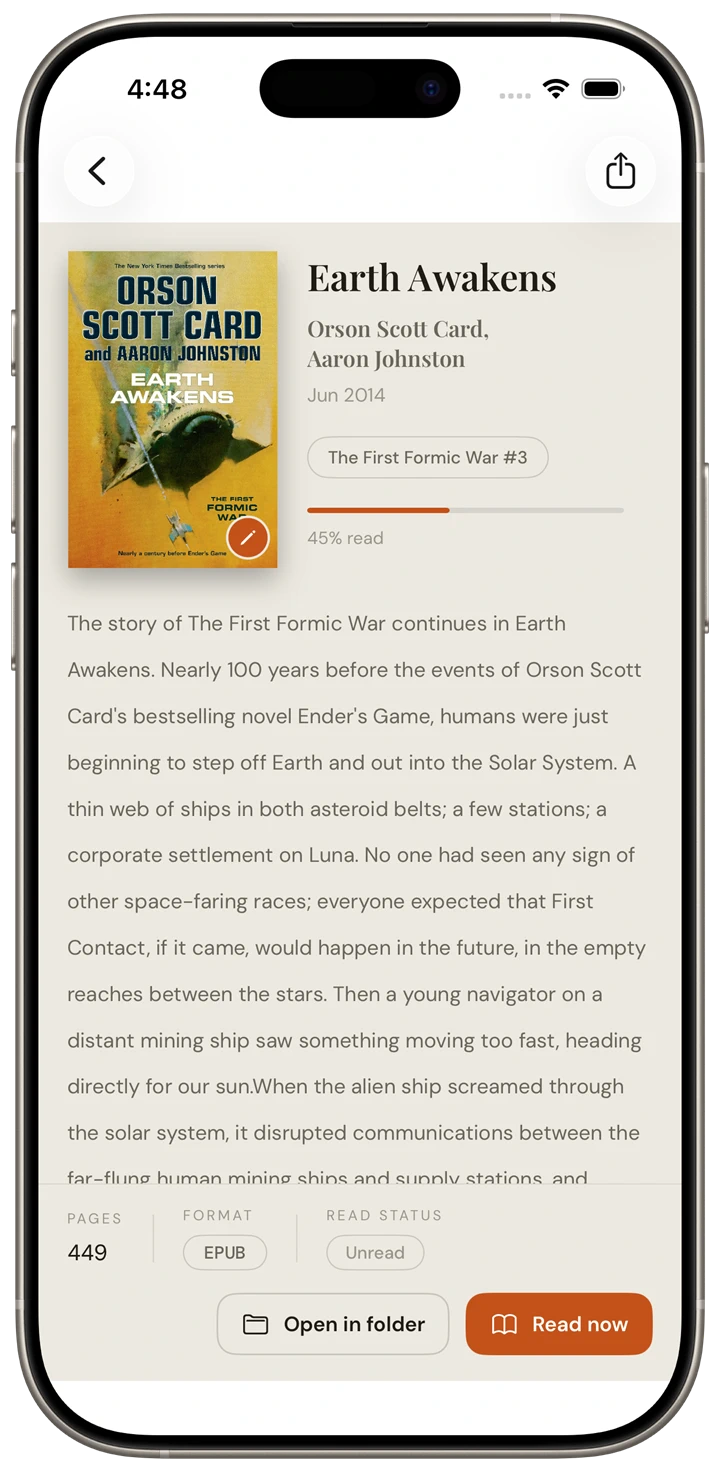
Tap any book (a grid card, a compact row, or a title inside a series) to open its detail view. You'll see the cover, full metadata (author, published date, series, rating), the description, and two actions: Read now and Open in folder. Read now opens the book in the built-in reader. Open in folder reveals the actual file in your phone's file browser, handy when you want the EPUB or PDF itself, say to email it to someone. The share icon in the top bar generates a card image you can send.
Reader
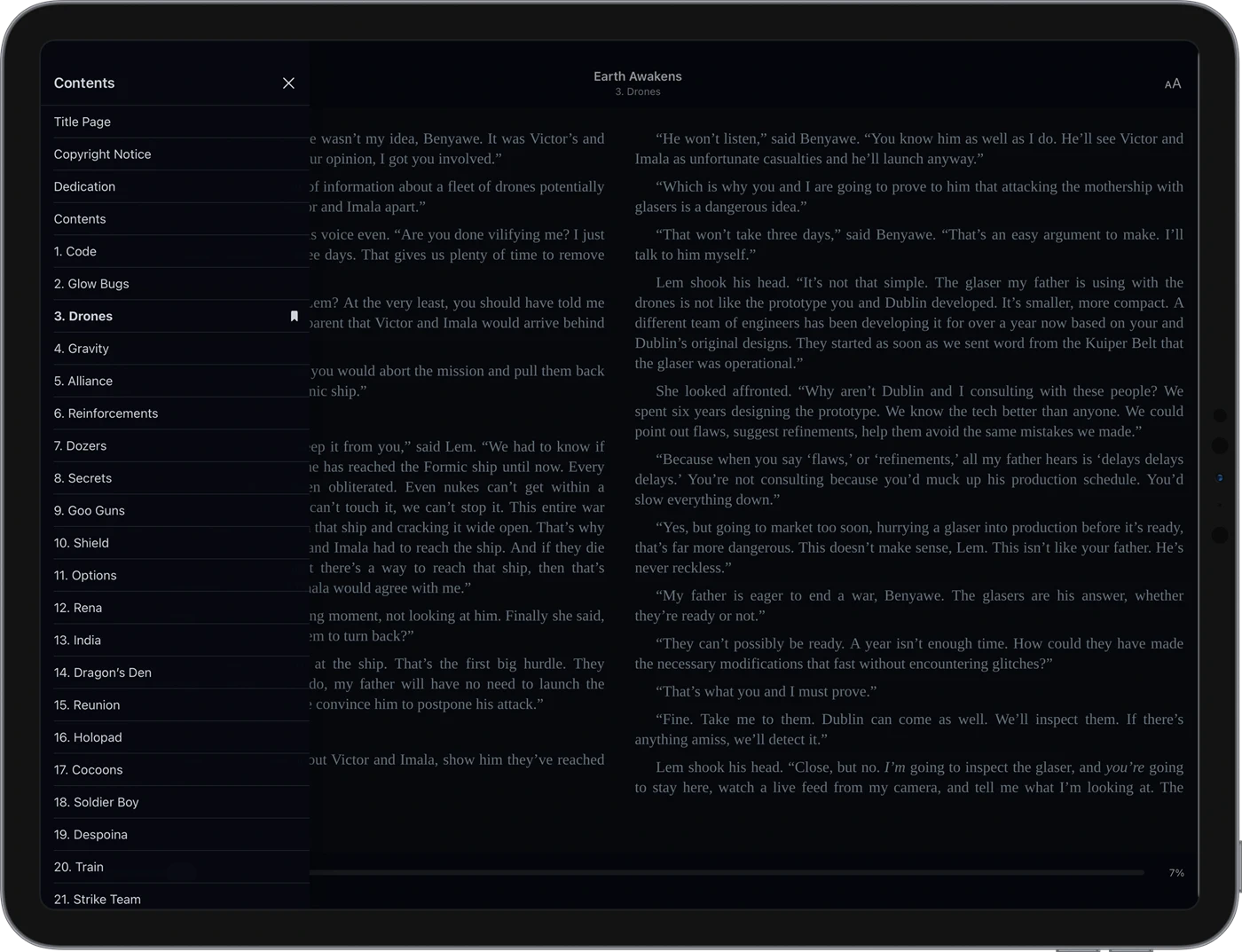
Read now launches CalibReader's built-in reader for that title: EPUBs and PDFs both open in the same native reader, no external app. Tap the center of the page to toggle the chrome: a top bar with Back, the table of contents, and reader settings, plus a bottom progress slider. Tap the left or right edge to turn pages. Closing the reader drops you back to the book's detail view.
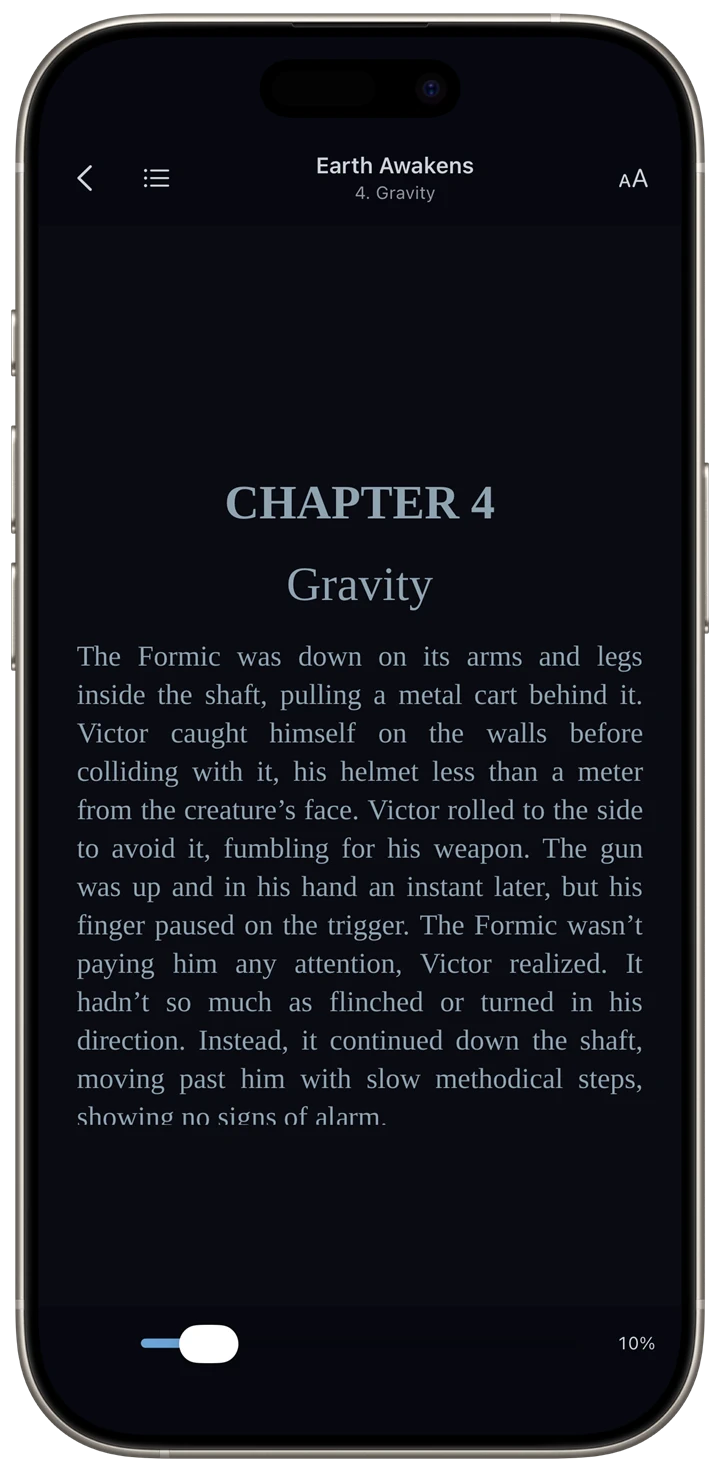
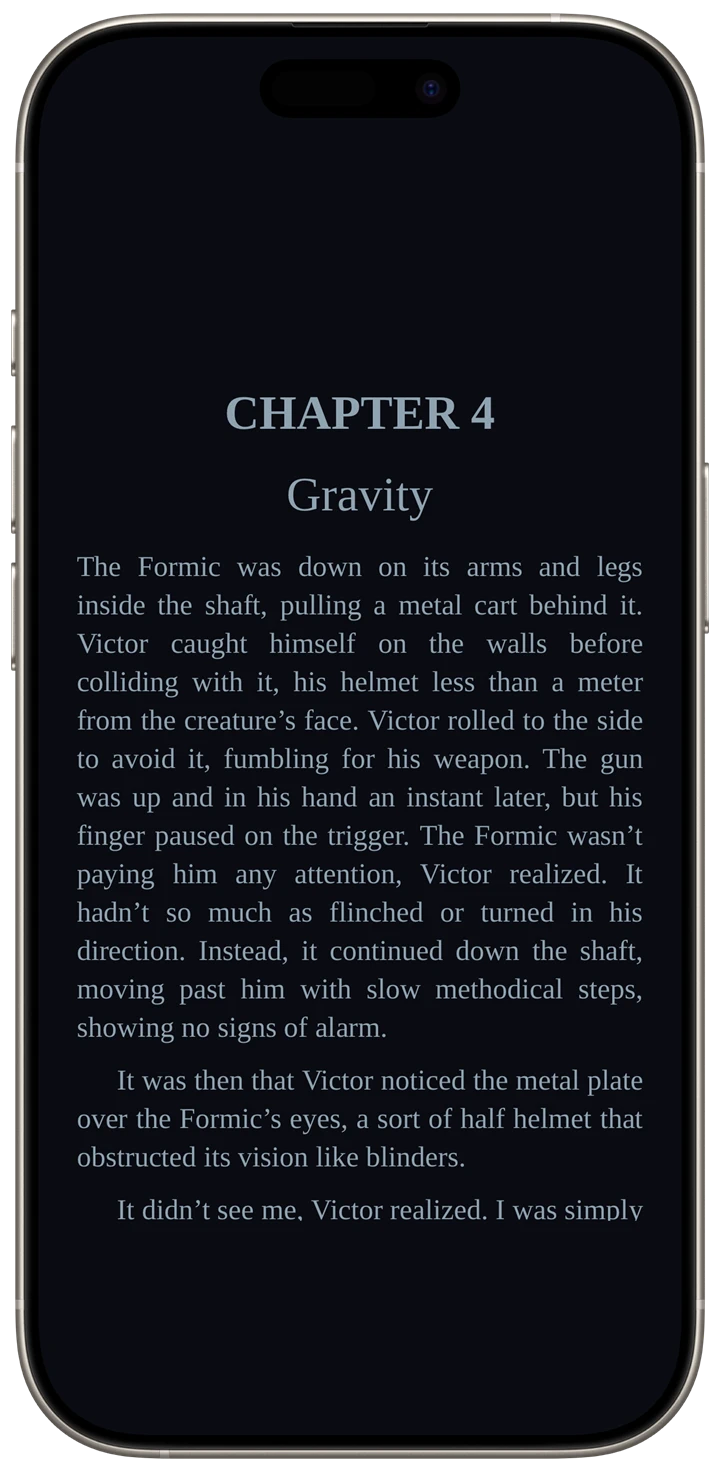
Scrolling, single page, or two pages
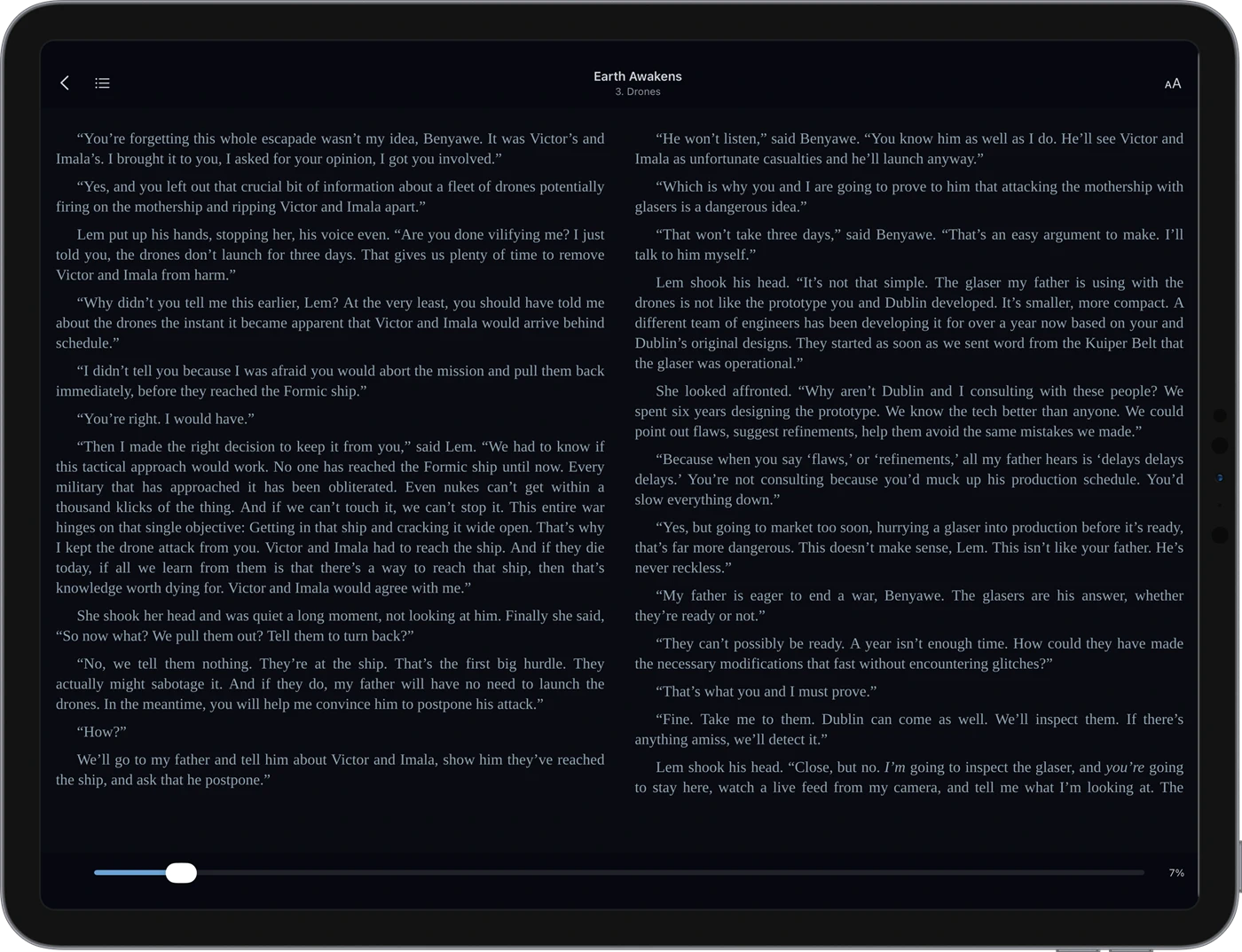
Choose how the book flows: continuous Scrolling, one Single Page at a time, or a Dual Page spread that turns a tablet on its side into a proper open book, two pages at once.
Make it yours
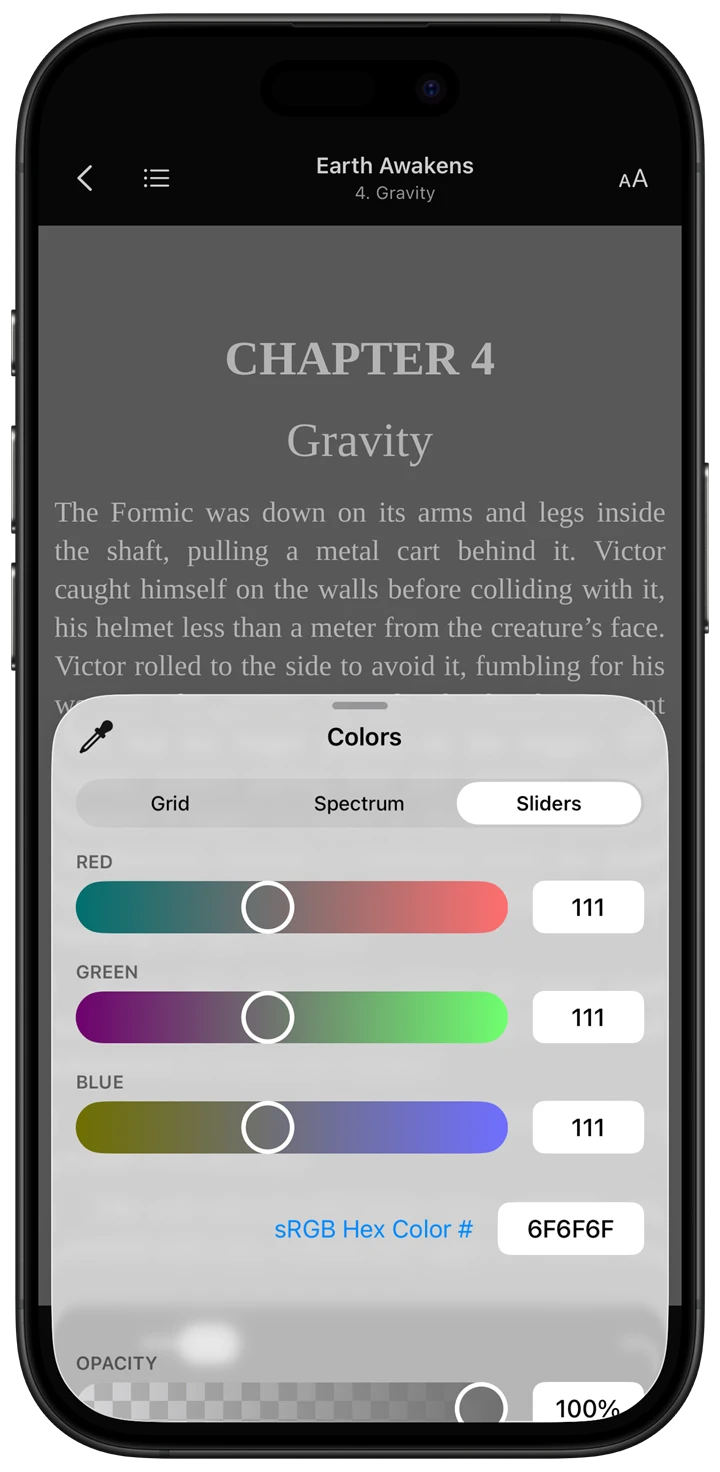
The Visual Settings panel covers all of it: layout, theme, font, size, line and paragraph spacing, justification, and margins. Beyond the preset themes you can set any background color you like with a full color picker, not just a handful of swatches.
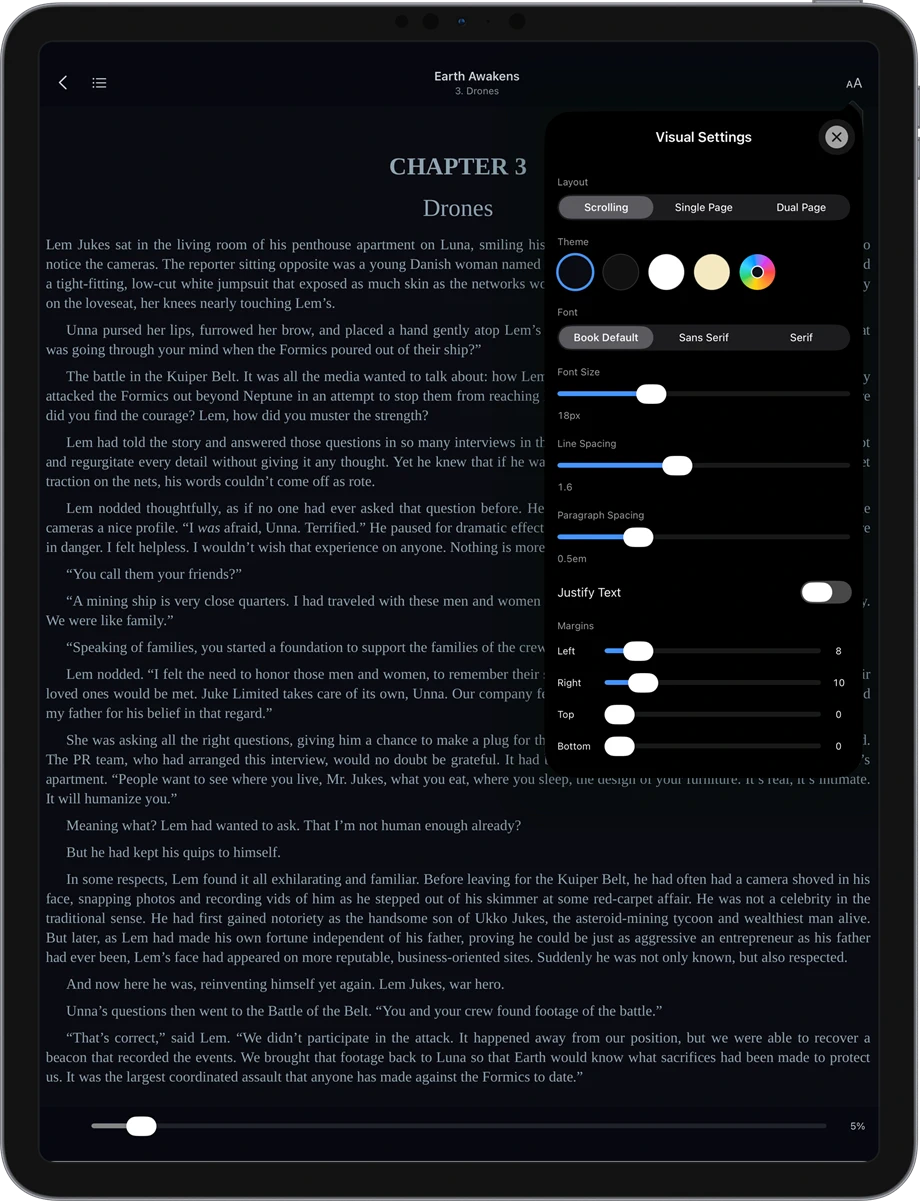
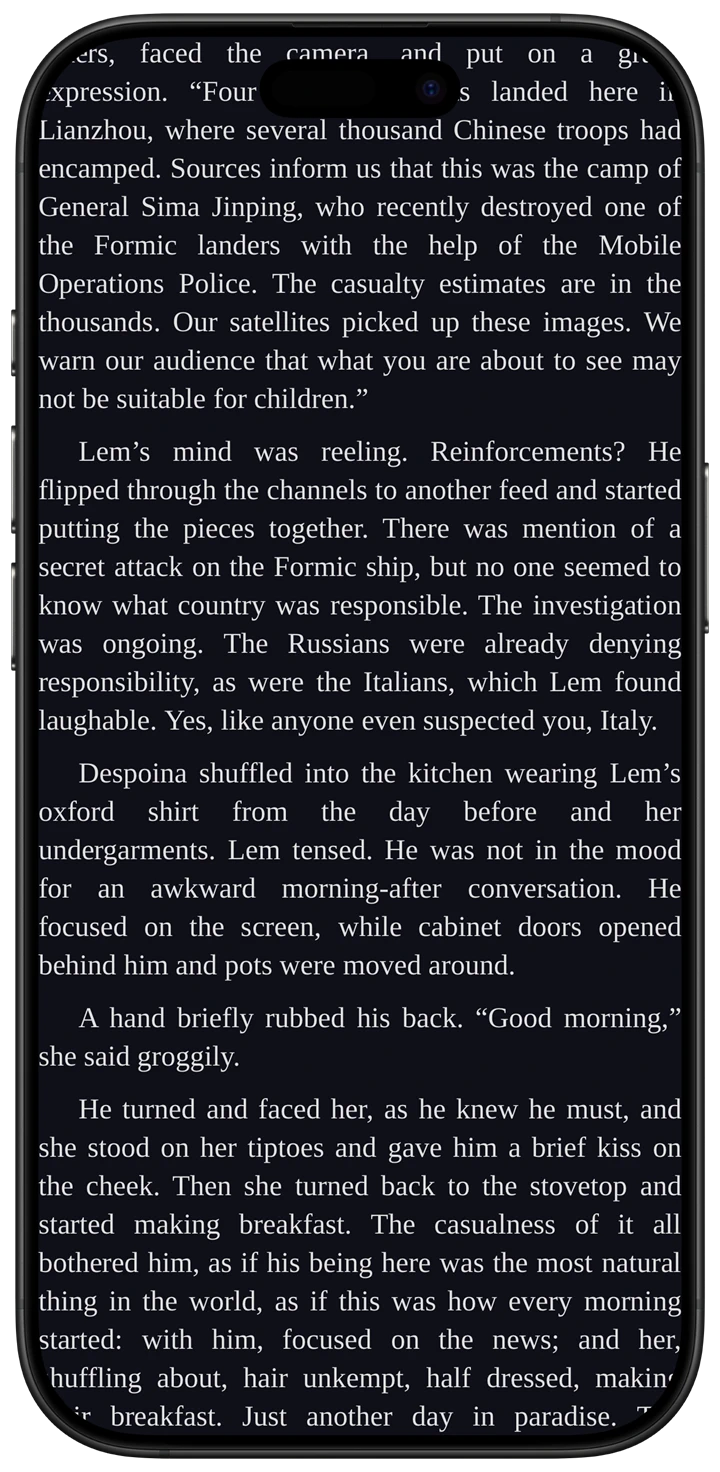
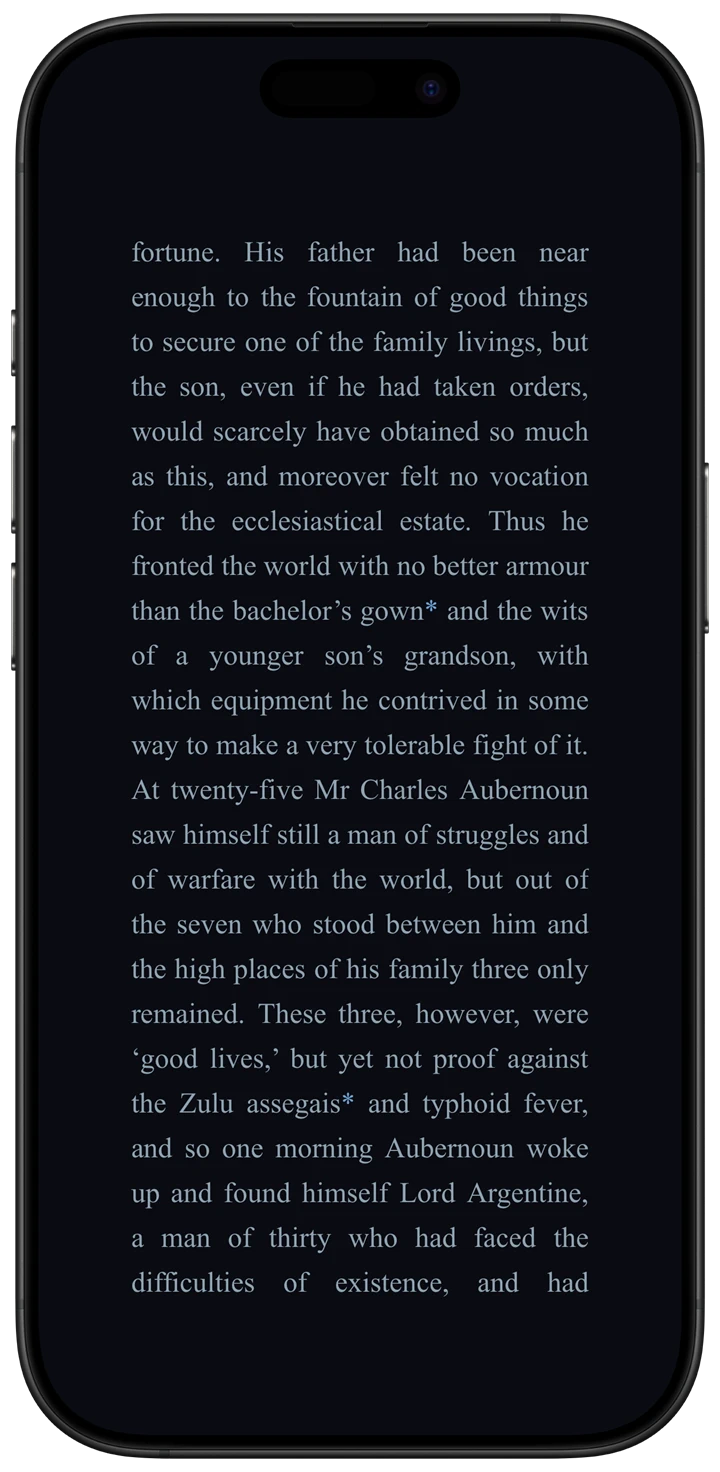
Dial the margins anywhere from edge-to-edge to a generous frame of whitespace:
A table of contents that actually works
Every chapter is correctly linked and mapped to the right place in the file, so the contents list jumps you exactly where you expect, something a surprising number of ereaders get wrong. Open the contents from the top bar, tap any entry, and you are there.